Installation of Hazelbean in Julia
Install Julia
- On windows, Install Julia (which includes juliaup, the official Julia installer/manager) from the Microsoft Store: https://www.microsoft.com/store/apps/9NJNWW8PVKMN
- For full installation instructions here: https://julialang.org/install/
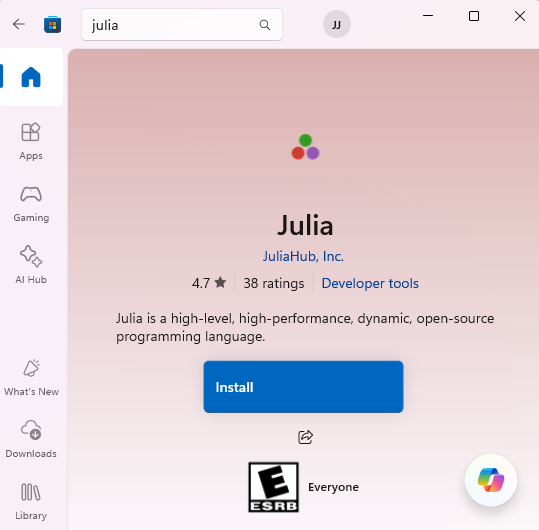
- Run the Julia application you just installed.
- An easy way is to do this is press the start button and type Julia.
- This will call
juliaup, which is a nice tool that will get you the latest version of the actual Julia code. 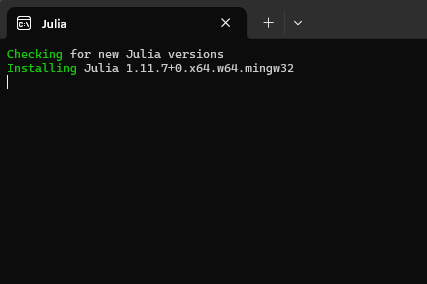
- After
juliaupis called, each subsequent time you call Julia, it will enter a Julia REPL (Read-Eval-Print-Loop, basically a command line instance of Julia)
Julia Environments
- Julia can have different environments (configurations of packages). Managing environments is notoriously challenging, but it is important.
- When you called
juliaupabove, it created a default system environment, stored in your Users directory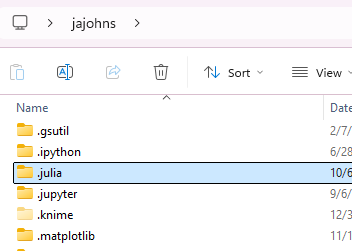
- This is the default system Julia installation. It’s tempting to use only this, but that can quickly get confusing and cause dependency nightmares.
- Better is to have specific environments tied to specific project and Git repo.
Julia’s Project.toml and Manifest.toml
A good Julia git repository will have two critical files at its project root: Project.toml and Manifest.toml. Together, these will tell your Julia how to install the exact versions of all packages needed. After you clone a repo with these files, navigate to that directory in the Command Prompt/Terminal and run:
julia --project=. -e 'using Pkg; Pkg.instantiate()'
This will launch Julia, set the project to the current directory, and then install all of the packages in Project.toml and Manifest.toml.
Manual adding of Packages
If you’re making your own environment or need to add additional packages, you can add them via Julia’s package manager. To do so:
- Launch Julia REPL for this project with
julia –project=. - In Julia REPL, type
]to enter the Package manager. - Install additional packages by name with something like this:
add ArchGDAL DataFrames JuMP CSV Plots Statistics GLM Optim JSON HTTP
When run in a project folder, this Add command will write/update the Manifest and Project files.